
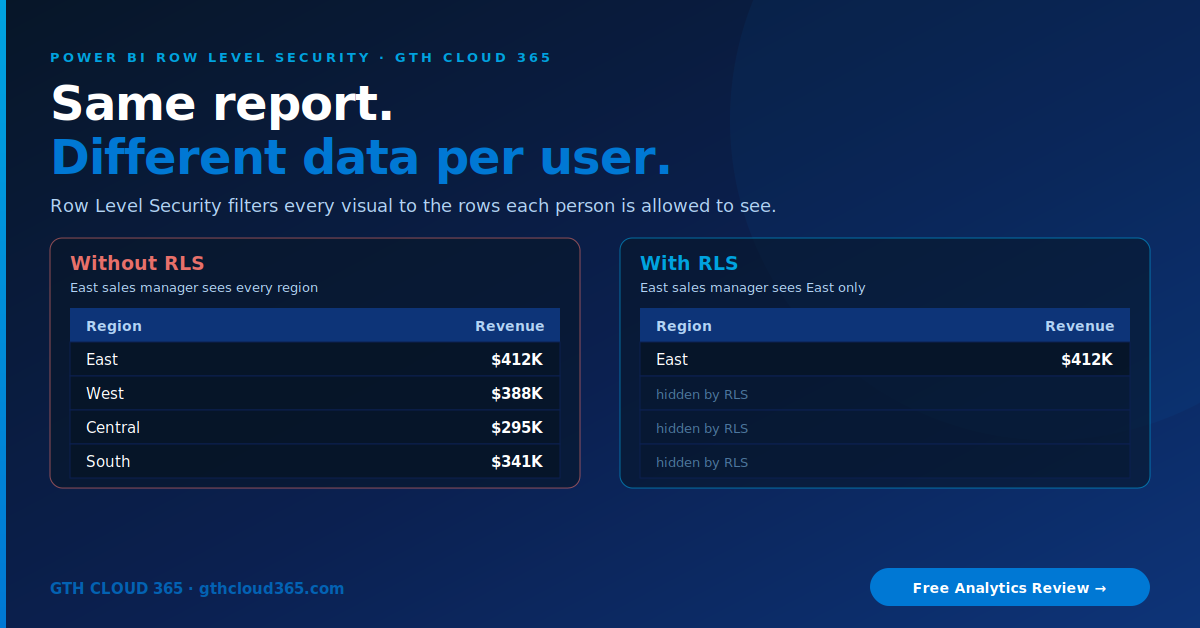
Power BI row level security is how you let a whole company use one report while each person sees only the data they’re allowed to see. Without it, most small businesses build the same report five times, one copy per region, manager or client, and still end up emailing the wrong version to someone.
Service: Microsoft Fabric & Power BI Analytics | Best for: SMBs with 20–500 users sharing sales, finance or client reports
Here’s the typical situation. A sales director wants one dashboard for the whole team. The East manager should see East numbers. The West manager should see West numbers. Leadership should see everything. Most teams handle this by duplicating reports or building separate workspaces. That approach breaks the moment someone changes a measure in one copy and forgets the others.
Row Level Security (RLS) fixes this at the data model level. You build one report, define who sees which rows, and Power BI filters every visual automatically.
What Is Power BI Row Level Security?
Power BI row level security is a set of rules, written as DAX filters, that restrict which rows of data a user can see in a semantic model (the dataset behind your reports). Every visual, slicer, total and export respects those rules.
There are two kinds:
- Static RLS: you hard-code the filter into the role. A role called “East” has the filter
[Region] = "East". It’s simple, but you need a separate role for every region, team or client. - Dynamic RLS: one role looks up the signed-in user’s email with
USERPRINCIPALNAME()and matches it against a mapping table (for example, a UserRegion table with Email and Region columns). Add a new manager to the table and they’re covered, with no new roles needed.
For most SMBs, dynamic RLS is the better long-term choice because your access rules live in a table you can maintain, not in a growing list of roles.
Why SMBs Need Row Level Security Now
Three things have changed in the last year:
- Reports are shared more widely. Power BI is now standard in Microsoft 365 environments, and reports that started with three viewers now have thirty.
- Copilot reads what users can read. When you roll out Copilot in Power BI or Microsoft Fabric, it answers questions using the data each user can access. If a sales rep can see every region’s revenue, Copilot will summarize every region’s revenue for them. RLS is a core part of Copilot and AI readiness.
- Clients and auditors are asking. If you share reports with clients or franchise partners, you need to show that one client can’t see another’s numbers.
How to Set Up Power BI Row Level Security in 5 Steps
Step 1: Map who should see what.
Before you open Power BI, write it down: which roles exist (sales manager, finance, leadership, client) and what each one should see. This one-page access map saves hours of rework.
Step 2: Create roles in Power BI Desktop.
Go to Modeling → Manage roles. Create a role and add a DAX filter to the right table. For dynamic RLS, filter your user mapping table with:
[Email] = USERPRINCIPALNAME()
Then make sure the mapping table’s relationship filters your fact table (sales, invoices, tickets).
Step 3: Test before you publish.
Use Modeling → View as in Desktop to check the report as a specific role or user. Look at totals, not just tables. A wrong relationship often shows up as a grand total that doesn’t change.
Step 4: Assign members in the Power BI Service.
Publish the report, open the semantic model’s Security settings in the workspace, and add users or (better) Microsoft Entra security groups to each role. Groups mean that when someone changes teams, IT updates one group and the report follows automatically.
Step 5: Validate with “Test as role” in the Service.
In the semantic model Security settings, use Test as role to confirm what a real user will see. Do this every time you change the model.
The Gotcha That Breaks Most RLS Setups
This is the mistake we see most often: RLS only applies to users with the Viewer role in the workspace.
Anyone with Admin, Member or Contributor access to the workspace can see all of the data, even when RLS is configured perfectly. Many SMBs add everyone as a Member “to make sharing easier,” then assume RLS is protecting them. It isn’t.
The fix:
- Give report consumers Viewer access to the workspace, or
- Share reports through a Power BI app, which gives users read-only access and keeps RLS in force.
Keep Member and Contributor roles for the small group who actually build reports.
Going Further: Object Level Security
Sometimes the issue isn’t which rows a user sees but which columns. For example, salary or margin fields that only finance should see. Object Level Security (OLS) can hide whole tables or columns from specific roles. Combined with RLS, it gives you real control over a shared semantic model without building separate versions.
Common Power BI Row Level Security Mistakes
- Testing only in Desktop. Always confirm in the Service with Test as role.
- Assigning individual users instead of groups. This becomes unmanageable past 20 users.
- Forgetting relationship direction. If the mapping table doesn’t filter the fact table, the rule does nothing.
- No owner for the mapping table. Someone has to update it when people join, leave or change territory.
- Treating RLS as the whole security plan. It works alongside workspace roles, sensitivity labels and sharing settings. Our Microsoft 365 governance framework covers how these fit together.
Power BI or Microsoft Fabric?
RLS works the same in both. If you’re deciding whether to stay on Power BI Pro or move to a Fabric capacity, read our comparison: Microsoft Fabric vs Power BI for SMBs in 2026.
For Microsoft’s full technical reference, see the official Row-level security (RLS) with Power BI documentation on Microsoft Learn.
How GTH Cloud 365 Helps
Our Microsoft Fabric and Power BI analytics service sets up Power BI row level security the right way for growing teams:
- Access map built with your managers in one working session
- Dynamic RLS with a maintainable mapping table and Entra groups
- Workspace roles cleaned up so RLS actually applies
- OLS for sensitive columns
- Testing and documentation your team can maintain
One report. The right data for every user. No more duplicate dashboards.
👉 Book a free analytics review, and we’ll check your workspaces for the Viewer-role gap in 30 minutes.