
Microsoft 365 governance framework implementation is the question every SMB IT leader eventually asks — not whether they need governance, but how to actually build it without disrupting the business, overwhelming a small IT team, or spending months on a project that never ships.
Most governance guides answer this question with a 50-page framework document that assumes you have a dedicated compliance team, a six-figure budget, and six months to spare. You do not. And you should not need any of those things to govern your Microsoft 365 environment properly.
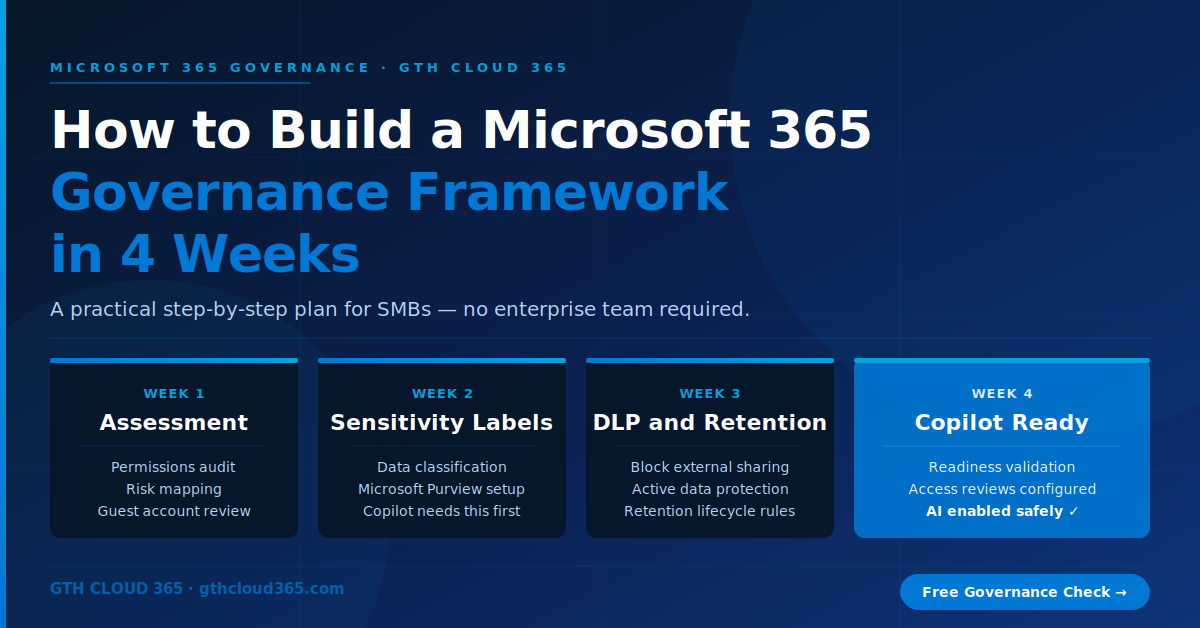
This post gives you a practical, four-week Microsoft 365 governance framework designed specifically for SMBs and mid-market organizations. It is the exact approach GTH Cloud 365 follows in every Microsoft 365 governance engagement. It is scoped to what matters most, sequenced to deliver quick wins early, and structured to be completed by a small IT team without grinding day-to-day operations to a halt.
Why Microsoft 365 Governance Cannot Wait
Before getting into the framework itself it is worth being clear about why this work is urgent — not just important.
Microsoft 365 is not a static platform. Every day your organization uses it, content is being created, shared, and retained without classification. Permissions are being granted and never reviewed. Guest accounts are accumulating. Flows are being built and deployed without oversight. And the gap between your current governance posture and the posture you need for safe Copilot adoption grows wider.
Every week you delay building a Microsoft 365 governance framework is another week of ungoverned content accumulating in your environment — content that Copilot will surface to anyone who asks when you eventually enable it.
The four-week framework in this post does not solve every governance challenge your organization will ever face. But it builds the foundation — the minimum viable governance posture that makes your Microsoft 365 environment secure, compliant, and ready for AI adoption. Everything else builds on top of it.
Before You Start — What You Need
Before beginning the four-week framework make sure you have the following in place:
Microsoft 365 Business Premium or above
The governance capabilities in this framework — Microsoft Purview, sensitivity labels, DLP policies, and advanced audit — require Microsoft 365 Business Premium at minimum. If you are on Microsoft 365 Business Basic or Standard you will need to upgrade before implementing this framework.
Global Administrator or Compliance Administrator access
You need admin access to both the Microsoft 365 admin center (admin.microsoft.com) and the Microsoft Purview compliance portal (compliance.microsoft.com) to implement these controls.
A stakeholder conversation
Before implementing sensitivity labels and DLP policies have a brief conversation with your leadership team, legal counsel if applicable, and any department heads who handle regulated data. You need alignment on your data classification tiers and sharing rules before you start configuring policies that affect how staff can share content.
A baseline inventory
Spend two hours before Week 1 answering these questions:
- How many SharePoint sites do you have?
- Do you know which sites contain your most sensitive content?
- Are there external guest accounts in your tenant?
- Do you have any existing DLP or retention policies?
- What regulated data categories apply to your organization — patient health information, financial data, legal correspondence, personal data?
These answers do not need to be perfect. They just need to be good enough to prioritize your work in the first week.
Week 1 — Assessment and Risk Mapping
The first week of your Microsoft 365 governance framework is about understanding your current state before changing anything. Governance work that skips the assessment phase ends up solving the wrong problems and missing the most critical risks.
Day 1 to 2 — Permissions audit
Run a permissions audit across your three primary data surfaces — SharePoint Online, OneDrive for Business, and Microsoft Teams.
For SharePoint: navigate to each site in the SharePoint admin center and review the members list and sharing settings. Identify sites with external sharing enabled, sites with overly broad membership, and sites containing sensitive content that has broader access than necessary.
For OneDrive: in the SharePoint admin center go to Sharing and review the tenant-level sharing settings. Identify whether anonymous sharing links are enabled and whether there is a link expiration policy in place.
For Teams: in the Teams admin center review external access and guest access settings. Identify Teams with external guests and check whether those guest relationships are still active and appropriate.
Document your findings. You are looking for three things — overshared content, stale external access, and locations containing your most sensitive data.
Day 3 — Guest account review
In the Microsoft Entra admin center (entra.microsoft.com) go to Users → All Users and filter by User Type → Guest. Review every guest account in your tenant. For each one ask — is this relationship still active? Does this person still need access? When did they last sign in?
Create a list of guest accounts to remove — typically anyone who has not signed in for 90 days or whose associated project or relationship has ended.
Day 4 to 5 — Risk prioritization and quick wins
Based on your assessment identify the five highest-risk items — the specific permissions, guest accounts, or sharing settings that represent the most immediate data exposure risk. These become your Week 1 quick wins.
Common quick wins that can be completed in hours:
- Disable anonymous sharing links at the tenant level
- Remove stale guest accounts identified in the guest account review
- Disable external sharing on SharePoint sites that contain sensitive content and have no legitimate external sharing need
- Enable multi-factor authentication for all users if not already enforced
Implement these quick wins before the end of Week 1. They reduce your most immediate risk exposure and demonstrate early progress.
Week 1 deliverable: A documented risk report covering your SharePoint permissions landscape, guest account status, and the five highest-risk items with the status of quick win remediation.
Week 2 — Sensitivity Labels and Data Classification
Week 2 of your Microsoft 365 governance framework focuses on implementing the data classification layer that makes everything else possible — including safe Copilot adoption.
Day 1 — Define your sensitivity label framework
Before creating any labels in Microsoft Purview define your classification tiers on paper first. For most SMBs four labels cover the full range of content sensitivity:
Public — Content that can be freely shared inside and outside the organization. Marketing materials, published blog posts, public product documentation.
Internal — Content for internal use only with no sensitive business information. General operational documents, internal meeting notes, project files with no regulated content.
Confidential — Content containing sensitive business information that should not leave the organization without authorization. Financial reports, client contracts, strategic plans, HR policies, pricing information.
Highly Confidential — Content containing regulated data, personally identifiable information, protected health information, or legally privileged content. The most restrictive classification — external sharing is blocked by default.
If your organization is in a regulated industry add a fifth label specific to your regulated data category — Protected Health Information for healthcare, Financial Account Information for financial services, Legally Privileged for legal organizations.
Day 2 to 3 — Create and publish sensitivity labels
Log into the Microsoft Purview compliance portal at compliance.microsoft.com. Go to Information Protection → Labels and create each label in your framework. Configure the visual marking for each label — header, footer, and watermark settings that will appear on labeled documents.
Create label policies that publish your labels to all users in your organization. Configure a default label for SharePoint libraries — start with Internal as the default for most libraries and Confidential as the default for libraries containing sensitive content.
Day 4 to 5 — Apply labels to high-risk content
Do not try to label everything in Week 2. Focus on your highest-risk content libraries — the locations identified in your Week 1 assessment that contain sensitive content. Apply appropriate labels to these libraries using SharePoint library settings and Purview auto-labeling policies where available.
Train your key users — particularly anyone in HR, finance, legal, or executive functions — on the sensitivity label framework. They should understand what each label means and how to apply labels to new documents they create.
Week 2 deliverable: A published sensitivity label framework with labels applied to your five highest-risk document libraries and a user communication explaining the classification system.
Week 3 — DLP Policies and Retention
Week 3 of your Microsoft 365 governance framework implements the active protection layer — the policies that prevent sensitive data from leaving your organization inappropriately and define how long content is retained.
Day 1 to 2 — Design your DLP policy framework
Before creating DLP policies decide what scenarios you need to cover. Start with the three most important scenarios for most SMBs:
Scenario 1 — Block external sharing of Confidential and Highly Confidential content
A DLP policy that prevents any document labeled Confidential or Highly Confidential from being shared externally via SharePoint, OneDrive, or Teams without explicit business justification.
Scenario 2 — Warn before emailing sensitive content externally
A DLP policy that detects sensitive information in emails to external recipients and warns the sender before the email is sent — requiring them to confirm the sharing is intentional and appropriate.
Scenario 3 — Protect regulated data categories
If your organization handles regulated data — patient health information, credit card numbers, social security numbers, financial account details — implement DLP policies that detect these data types and apply appropriate blocking or warning actions.
Day 3 — Implement DLP policies in Microsoft Purview
Go to Microsoft Purview → Data Loss Prevention → Policies and create your policies. For each policy:
Start with Policy Mode set to Test with policy tips — this shows users policy tip notifications without blocking actions. Run in test mode for five to seven days to identify false positives and tune the policy before moving to enforcement mode.
Review the policy match reports in the DLP dashboard daily during the test period. Adjust sensitive information type thresholds and exclusions to minimize false positives before enabling enforcement.
Day 4 to 5 — Implement retention policies
Go to Microsoft Purview → Data Lifecycle Management → Retention Policies and create your retention framework.
A basic retention framework for most SMBs:
- Email: retain for 3 to 7 years depending on industry requirements
- SharePoint and OneDrive — general content: retain for 3 years
- SharePoint and OneDrive — financial content: retain for 7 years
- SharePoint and OneDrive — HR content: retain for duration of employment plus 7 years
- Teams messages: retain for 3 years
Apply retention policies to Exchange Online, SharePoint, OneDrive, and Teams locations.
Week 3 deliverable: Three active DLP policies running in test mode with initial match reports reviewed, and retention policies applied across all primary Microsoft 365 workloads.
Week 4 — Copilot Readiness Validation and Governance Playbook
Week 4 of your Microsoft 365 governance framework validates everything you have built, enables DLP policies for enforcement where appropriate, and documents your governance controls for ongoing maintenance.
Day 1 — Move DLP policies from test to enforcement
Review the DLP policy match reports from Week 3. For policies with low false positive rates move from Test mode to Enforce with notifications — this means users receive a policy tip and must provide a business justification to override the block.
For policies with higher false positive rates refine the configuration and run in test mode for another week before enforcing.
Day 2 — Copilot readiness validation
Run through the Copilot readiness checklist to confirm your environment is prepared for safe AI adoption:
- Permissions are role-based and have been cleaned of oversharing identified in Week 1 — confirmed
- Stale guest accounts identified in Week 1 have been removed — confirmed
- Sensitivity labels are published and applied to high-risk content libraries — confirmed
- DLP policies are active and covering the three key sharing scenarios — confirmed
- Retention policies are applied across all primary workloads — confirmed
- SharePoint tenant-level sharing settings have been reviewed and tightened — confirmed
If all six checks pass your environment is ready for Copilot pilot enablement. Enable Copilot licenses for a pilot group — typically five to ten users from your administrative or management team — before rolling out to the full organization.
Day 3 to 4 — Access review schedule
Configure Microsoft Entra ID Access Reviews for guest accounts. Go to the Microsoft Entra admin center → Identity Governance → Access Reviews and create a quarterly access review that automatically asks guest account sponsors to confirm whether each guest still needs access.
This ensures the guest account cleanup from Week 1 does not gradually unwind over the following months as new guest accounts accumulate.
Day 5 — Governance playbook
Document everything you have implemented in a Microsoft 365 Governance Playbook. The playbook should cover:
- Sensitivity label framework — what each label means, when to use it, who is responsible
- DLP policy reference — what each policy covers, what users should do when they receive a policy tip
- SharePoint governance rules — who can create sites, what the default sharing settings are, how permissions are reviewed
- Guest access policy — when guest access can be granted, who approves it, how often it is reviewed
- Retention schedule — what content is retained for how long and in which locations
- Incident response — what to do if a DLP policy is triggered by a genuine data exposure event
Store the playbook in a governed SharePoint site accessible to all IT staff and relevant business stakeholders.
Week 4 deliverable: DLP policies in enforcement mode, Copilot readiness confirmed and pilot enabled, access reviews configured, and a completed governance playbook published to SharePoint.
What Comes After the Four Weeks
Completing the four-week Microsoft 365 governance framework gives your organization a solid, defensible governance foundation. But governance is not a project — it is an ongoing practice.
After Week 4 maintain your governance posture through these ongoing activities:
Monthly — Review DLP policy match reports and adjust thresholds where needed. Review new guest accounts added in the month and confirm they have appropriate sponsors.
Quarterly — Complete the Microsoft Entra ID Access Review for guest accounts. Review sensitivity label adoption rates in the Microsoft Purview dashboard. Check SharePoint site sharing settings for any new sites created in the quarter.
Annually — Run a full permissions audit equivalent to your Week 1 assessment. Review and update the governance playbook. Assess whether your sensitivity label framework and DLP policies still reflect your current business needs and regulatory environment.
Key Takeaways
- A Microsoft 365 governance framework does not require months of planning or enterprise resources — a focused four-week engagement delivers the foundation your SMB needs
- Week 1 assessment is the most important week — you cannot govern what you do not understand
- Sensitivity labels are the foundation of everything else — DLP policies, Copilot governance, and compliance reporting all depend on content being properly classified
- DLP policies should start in test mode — enforcing untested policies creates user friction and business disruption
- Governance is an ongoing practice not a one-time project — the quarterly and annual rhythms in this framework keep your posture from degrading over time
- A completed governance playbook is as important as the technical controls — your successor or next IT hire needs to understand what was built and why
Ready to Build Your Microsoft 365 Governance Framework
If you have read this far you understand what needs to be done. The question is whether you have the time, expertise, and internal bandwidth to do it yourself — or whether a focused four-week engagement with a specialist who has done this dozens of times would get you there faster with better results.
GTH Cloud 365 delivers the Microsoft 365 governance framework described in this post for SMBs and mid-market organizations every day. We bring the tooling, the templates, the expertise, and the governance playbook. You get a governed, compliant, Copilot-ready Microsoft 365 environment in four weeks without pulling your IT team away from their day jobs.
The first step is a free Microsoft 365 Governance and AI Readiness Health Check — one session where we assess your current posture, identify your top risks, and give you a clear view of what your four-week engagement would look like.
No obligation. No sales pressure. Just specific, actionable guidance for your Microsoft 365 environment.
Request Your Free Governance Health Check →