
Microsoft 365 DLP policies are one of the most important and most frequently misconfigured security controls available to SMBs in Microsoft 365 — and most organizations using Business Premium licenses have never set up a single one.
Data Loss Prevention policies in Microsoft 365 are the technical controls that prevent sensitive information from leaving your organization inappropriately. They sit between your users and the outside world — watching what is being shared, where it is going, and whether that sharing complies with your organization’s data handling rules.
Without DLP policies in place your Microsoft 365 environment has no mechanism to prevent a staff member from emailing a client’s financial records to a personal Gmail account. It has no way to warn a junior employee before they share a confidential contract via a Teams message to an external guest. It cannot detect when protected health information is being copied to an unauthorized SharePoint site. And when Microsoft Copilot is enabled it has no governance context to apply when generating responses that draw on sensitive content.
This post explains what Microsoft 365 DLP policies actually are in plain English, how they work across the different Microsoft 365 workloads, which three DLP scenarios every SMB needs to implement before enabling Copilot, and how to get started without overwhelming your IT team or disrupting your business.
What Are Microsoft 365 DLP Policies
Microsoft 365 DLP policies are rules that define what constitutes sensitive information in your organization, where that information is allowed to go, and what happens when a user tries to share it in a way that violates those rules.
A DLP policy has three components:
What to look for — sensitive information types or sensitivity labels that identify the content the policy should protect. Microsoft 365 includes over 300 built-in sensitive information types covering credit card numbers, social security numbers, medical record numbers, IBAN numbers, passport numbers, and many more. You can also create custom sensitive information types specific to your organization. Alternatively DLP policies can be configured to trigger based on sensitivity labels — protecting any content classified as Confidential or Highly Confidential regardless of what specific information it contains.
Where to apply it — the Microsoft 365 workloads where the policy is active. DLP policies in Microsoft Purview can be applied across SharePoint Online, OneDrive for Business, Exchange Online, Microsoft Teams, and Microsoft 365 Apps. A single policy can cover all of these workloads simultaneously or be scoped to specific locations.
What to do when a violation is detected — the action the policy takes when it identifies sensitive content being shared in violation of the rules. Actions range from generating an audit log entry only (monitor mode) to showing the user a policy tip notification to blocking the action entirely with or without an override option.
This three-part structure means every DLP policy answers three questions — what content, going where, triggering what action.
How DLP Policies Work in Practice
Understanding DLP policies conceptually is one thing. Seeing how they work in a real scenario makes the value immediately clear.
Scenario — an employee tries to email confidential client data externally
A financial analyst drafts an email containing a client’s investment portfolio summary and addresses it to an external recipient outside the organization.
Without a DLP policy: the email sends immediately with no warning and no audit record.
With a DLP policy: Microsoft Purview scans the email content as it is being sent. It detects content labeled Confidential or matching the financial data sensitive information type. The DLP policy triggers a policy tip — a notification that appears in Outlook telling the user that this email contains content that may not be appropriate to share externally. The policy requires the user to enter a business justification before the email can be sent. The justification and the sending event are recorded in the DLP audit log.
The email may still be sent — but it is now intentional, documented, and auditable.
Scenario — a user tries to share a SharePoint document containing personal data externally
A HR manager shares a SharePoint document containing employee salary information using a shareable link.
Without a DLP policy: the link is created and the document is accessible to anyone with the link.
With a DLP policy: Microsoft Purview detects that the document contains personal information matching the salary or personal data sensitive information type and that it is labeled Highly Confidential. The DLP policy blocks the external sharing action entirely and shows the user a notification explaining why. The blocked action is recorded in the audit log.
The document cannot be shared externally — full stop.
Where DLP Policies Apply in Microsoft 365
One of the most important things to understand about Microsoft 365 DLP policies is that they apply across multiple workloads — not just email. A well-configured DLP framework covers all the ways sensitive information can leave your organization.
Exchange Online — DLP policies scan outbound emails for sensitive content. They can warn, require justification, or block emails based on their content and destination. This is the most common starting point for most SMBs because email is the highest-volume data exfiltration vector.
SharePoint Online — DLP policies monitor document sharing events. They can block external sharing of documents containing sensitive information or documents with specific sensitivity labels. They can also flag documents that have been shared and alert the security team.
OneDrive for Business — same controls as SharePoint apply to OneDrive. Personal drives used by staff to store work documents are protected by the same DLP policies that govern SharePoint sites.
Microsoft Teams — DLP policies scan messages in Teams channels and chats for sensitive content. They can prevent users from pasting sensitive data into Teams messages or sharing files containing sensitive information with external guests in Teams channels.
Microsoft 365 Apps — DLP policies can be applied within Word, Excel, PowerPoint, and Outlook to show users policy tips as they work on documents — warning them when content they are creating or editing would violate a DLP policy if shared.
For most SMBs starting with Exchange Online and SharePoint Online covers the highest-risk sharing scenarios. Teams DLP becomes important as external guest usage grows.
The Three DLP Scenarios Every SMB Needs Before Enabling Copilot
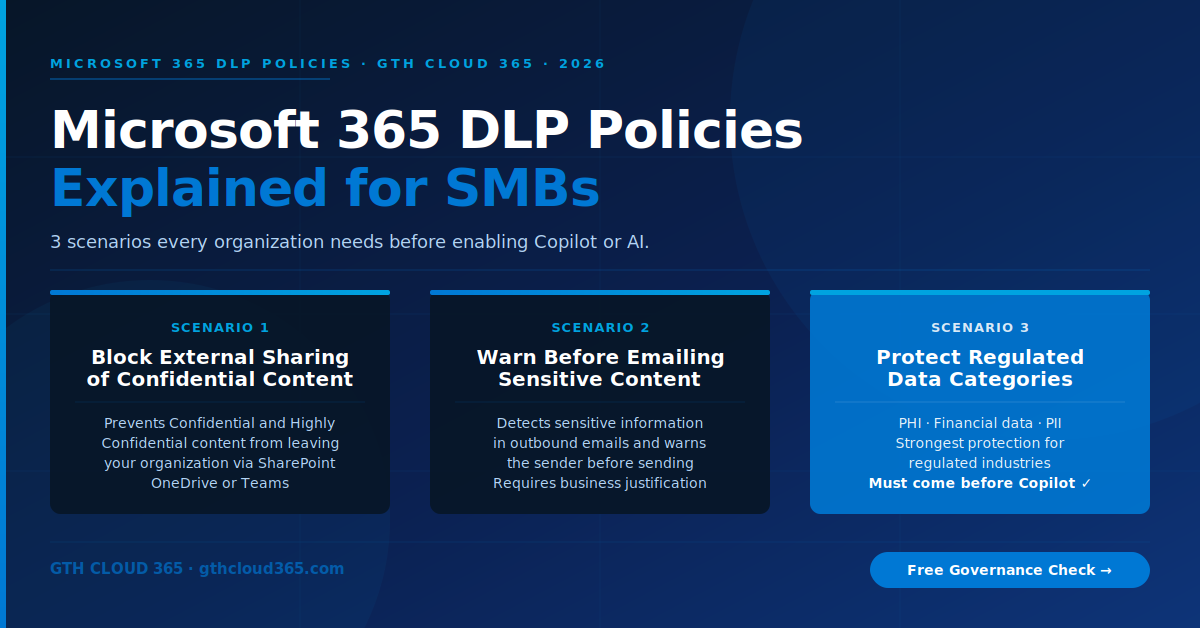
Not all DLP policies are equally important. For SMBs preparing for Copilot adoption three scenarios are non-negotiable. Without these three scenarios covered your environment has significant data protection gaps that Copilot will amplify.
Scenario 1 — Block External Sharing of Highly Confidential Content
What it does: Prevents any document or file classified as Confidential or Highly Confidential from being shared externally via SharePoint, OneDrive, or Teams without explicit business justification.
Why it matters for Copilot: Copilot can help users draft emails, generate summaries, and create documents drawing on content from across your Microsoft 365 environment. Without this DLP policy Copilot could assist a user in creating an email that includes excerpts from confidential documents and send it externally with no warning.
How to configure it in Microsoft Purview:
Go to Microsoft Purview → Data Loss Prevention → Policies → Create Policy. Select Custom policy. Under Conditions select Content contains — Sensitivity labels — Confidential and Highly Confidential. Under Actions select Restrict access or encrypt the content — Block everyone. Under User notifications enable policy tips for SharePoint, OneDrive, and Teams. Set policy mode to Test with policy tips first — run for one week before switching to enforcement mode.
When to enforce: Move to enforcement mode after reviewing the test period reports and confirming the false positive rate is acceptable. For most SMBs this happens within two weeks of initial deployment.
Scenario 2 — Warn Before Emailing Sensitive Content Externally
What it does: Detects sensitive information in outbound emails to external recipients and warns the sender before the email is sent — requiring them to confirm the sending is intentional and provide a business justification.
Why it matters for Copilot: When users ask Copilot to draft email responses Copilot may include content from documents and emails it has access to — including sensitive content the user did not explicitly intend to include. This DLP policy catches that content at the sending stage and requires human confirmation before it leaves the organization.
How to configure it in Microsoft Purview:
Create a new policy. Under Location select Exchange Email. Under Conditions select Content contains — Sensitivity labels — Confidential OR Content contains — Sensitive information types — select the types relevant to your industry (financial data, personal data, health information). Under Actions select Notify users with a policy tip and email — allow override with business justification. Set policy mode to enforcement from day one — warn mode does not block, it just requires confirmation, so false positive impact is minimal.
Key configuration detail: Set the condition to apply only when content is sent to recipients outside your organization. Use the sender domain condition to exclude internal email addresses from the policy scope.
Scenario 3 — Protect Regulated Data Categories
What it does: Detects regulated data types specific to your industry — protected health information, financial account numbers, credit card numbers, social security numbers, personal identifiable information — and applies the strongest protection controls when that data is detected in a sharing scenario.
Why it matters for Copilot: Regulated data creates the highest legal and regulatory exposure if improperly shared. When Copilot is enabled it can query and surface regulated data in response to natural language questions. This DLP policy ensures that even if Copilot surfaces regulated content it cannot be shared externally without being intercepted by the policy.
How to configure it in Microsoft Purview:
Create a policy per regulated data category relevant to your organization. For healthcare use the US Health Insurance Act (HIPAA) template which pre-configures the relevant sensitive information types. For financial services use the Gramm-Leach-Bliley Act (GLBA) template. For organizations handling personal data use the GDPR template for European data or the US State Privacy Laws template for US personal data.
Under Actions select Block everyone from receiving access — this is the highest restriction level and appropriate for regulated data categories where external sharing should never occur without explicit compliance officer approval.
DLP Policy Modes — Start with Test, Move to Enforce
One of the most common mistakes SMBs make when implementing Microsoft 365 DLP policies is going straight to enforcement mode without testing first. This creates user friction, generates help desk tickets, and erodes trust in the governance program before it has a chance to deliver value.
The correct approach is a three-stage rollout:
Stage 1 — Monitor only (no notifications)
Run the policy in monitor mode for three to five days. Review the DLP match reports in the Microsoft Purview dashboard to understand the volume and nature of policy matches. Identify obvious false positives — legitimate business activities that are triggering the policy incorrectly.
Stage 2 — Test with policy tips (notifications, no blocking)
Move to test mode with policy tips enabled. Users see notifications when their actions trigger the policy but can continue without restriction. This builds awareness without disruption and allows you to tune the policy based on user feedback before enforcement begins.
Stage 3 — Enforce with override option
Move to enforcement mode with override allowed — users must provide a business justification to override a block. This is the target state for most SMB DLP policies. Full block without override is reserved for the highest-sensitivity regulated data categories where no override should ever be allowed.
Common DLP Policy Mistakes SMBs Make
Mistake 1 — Configuring DLP without sensitivity labels
DLP policies based on sensitivity labels are significantly more accurate and less prone to false positives than policies based solely on sensitive information types. Before implementing DLP implement your sensitivity label framework — the two work together and DLP performs much better when labels are in place.
Mistake 2 — Starting with full enforcement
As described above — always start in test mode. Going straight to enforcement generates unnecessary disruption and creates resistance to the governance program from staff who feel their work is being blocked without understanding why.
Mistake 3 — Covering email only
Email is the most obvious DLP scenario but SharePoint and Teams represent equally significant exfiltration vectors — especially as organizations adopt Copilot and Power Automate. A complete DLP framework covers all three workloads.
Mistake 4 — Never reviewing DLP match reports
DLP policies generate detailed match reports in the Microsoft Purview compliance portal. Most organizations configure policies and never look at the reports again. Monthly review of DLP match reports surfaces policy tuning opportunities, identifies staff who are repeatedly triggering policies and may need additional training, and provides evidence of active data protection for compliance audits.
Mistake 5 — Treating DLP as a one-time configuration
As your organization grows, adds new staff, adopts new tools, and expands into new regulated markets your DLP policy framework needs to evolve. Build a quarterly DLP review into your governance calendar — reviewing match reports, assessing whether existing policies still reflect your business needs, and adding new policies for new risk scenarios.
DLP Policies and Microsoft Copilot
The relationship between Microsoft 365 DLP policies and Copilot is direct and important.
Microsoft Copilot operates within the governance context of your Microsoft 365 environment. When a user asks Copilot to draft an email, generate a summary, or create a document Copilot draws on content from across the environment based on that user’s access permissions.
DLP policies intercept the output of Copilot interactions at the sharing stage — when a Copilot-generated email is about to be sent, when a Copilot-drafted document is about to be shared, or when a Copilot response in Teams is about to be sent to an external guest.
This means DLP policies are your last line of defense against Copilot inadvertently facilitating data exfiltration — even when the user did not intend to share sensitive content, Copilot may have included it in a generated response drawing on documents and emails the user has access to.
For this reason DLP policies must be in place and in enforcement mode before Copilot is enabled for any user in your organization. This is not a best practice — it is a prerequisite.
Key Takeaways
- Microsoft 365 DLP policies are the active protection layer that prevents sensitive data from leaving your organization — without them your Microsoft 365 environment has no mechanism to intercept inappropriate sharing
- DLP policies apply across Exchange Online, SharePoint, OneDrive, Teams, and Microsoft 365 Apps — a complete framework covers all workloads not just email
- The three scenarios every SMB must implement before enabling Copilot are: block external sharing of highly confidential content, warn before emailing sensitive content externally, and protect regulated data categories
- Always start in test mode — running for at least one week before moving to enforcement prevents unnecessary disruption and builds staff awareness
- DLP policies and sensitivity labels work together — implement labels first for better accuracy and fewer false positives
- DLP policies must be in enforcement mode before Copilot is enabled — they are the last line of defense against AI-assisted data exfiltration
- Monthly review of DLP match reports keeps your policies tuned and provides compliance audit evidence
If you have not yet built your Microsoft 365 governance framework start there first — DLP policies are most effective when your sensitivity label framework is already in place.
Is Your Microsoft 365 Environment Protected by DLP Policies
Most SMBs are not. And most do not know it until they run a governance assessment and see the gap for the first time.
GTH Cloud 365 offers a free Microsoft 365 Governance and AI Readiness Health Check that includes a DLP policy review as part of the assessment. In one session we identify whether your organization has DLP policies configured, which scenarios are covered and which are missing, and what needs to be in place before Copilot can be enabled safely.
No obligation. No sales pressure. Just specific, actionable guidance for your Microsoft 365 environment.
Request Your Free Governance Health Check →