
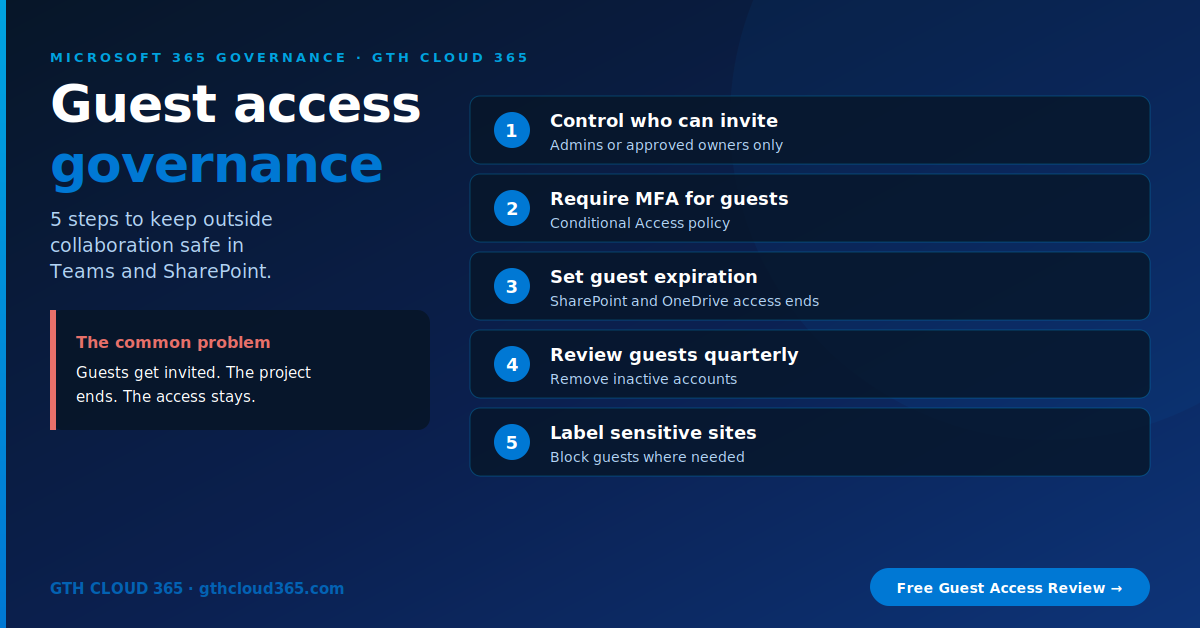
Microsoft 365 guest access is one of the easiest ways to work with clients, contractors and partners, and one of the most forgotten security risks in small businesses. Someone invites a guest to a Team or a SharePoint site, the project ends, and the access stays for months or even years.
Service: Microsoft 365 Governance | Best for: SMBs with 10–300 users who share files with outside people
Ask most business owners three simple questions and the answers get vague fast:
- How many guest accounts are in your tenant right now?
- Can a contractor from last year’s project still open your files?
- Who approved each guest, and when does their access end?
If you’re not sure, you’re not alone. The good news is that Microsoft 365 guest access can be brought under control in an afternoon, with settings you already have.
What Is Microsoft 365 Guest Access?
When you invite someone outside your company to a Team, a SharePoint site or a shared file, Microsoft 365 creates a guest account for them in Microsoft Entra ID (formerly Azure AD). That guest signs in with their own email, and they can see whatever you’ve shared with them.
That’s useful. It means no more emailing attachments back and forth. But every guest account is a door into your environment. If it’s never closed, it stays open.
Why Microsoft 365 Guest Access Becomes a Risk
We see the same patterns in almost every governance review:
- Guests who never left. Contractors, agencies and former clients with active access long after the work ended.
- Anyone can invite anyone. Default settings often let every employee invite guests with no approval.
- No MFA for guests. Guests sign in with just a password, even when your own staff must use MFA.
- Oversharing through Copilot. Copilot respects permissions, so a guest added to the wrong site or team can find content you didn’t mean to share. Our Copilot vs Copilot Studio guide explains why permissions matter before any AI rollout.
- Insurance and audit questions. Cyber insurers and clients increasingly ask how you control external access.
The 5-Step Microsoft 365 Guest Access Governance Plan
Step 1: Control who can invite guests
In the Microsoft Entra admin center, go to External Identities → External collaboration settings.
- Under Guest invite settings, limit invitations to admins and users in specific roles, or at least to members only (never guests inviting guests).
- Under Guest user access, choose the most restrictive option so guests can only see their own directory information.
- Optional: use collaboration restrictions to allow invitations only to trusted partner domains.
Then check Microsoft 365 admin center → Settings → Org settings → Microsoft 365 Groups and decide whether group owners can add outside people.
Step 2: Require MFA for every guest
If you have Microsoft 365 Business Premium (which includes Microsoft Entra ID P1), create a Conditional Access policy that targets guest or external users and requires multifactor authentication. This is one of the most effective controls for Microsoft 365 guest access. Even if a guest’s password is stolen, the attacker can’t get in.
Step 3: Set guest access to expire
In the SharePoint admin center → Policies → Sharing:
- Choose the right external sharing level. For most SMBs, that’s New and existing guests for specific sites, not “Anyone” links company-wide.
- Turn on guest access expiration, so guest access to sites and OneDrive ends automatically after a set number of days (for example, 90). Guests can be re-invited if the work continues.
- Set sharing at the site level too. Your HR and finance sites should allow no external sharing at all.
Step 4: Review guests every quarter
Set a calendar reminder. Every 90 days:
- In the Entra admin center, open Users and filter by User type: Guest.
- Export the list and check each guest’s last sign-in date.
- Remove guests who haven’t signed in for 90 days, or whose project has ended.
- Remove invitations still showing pending acceptance after 30 days.
If you have Microsoft Entra ID P2 or Microsoft Entra ID Governance, you can automate this with access reviews, which ask team owners to confirm each guest and remove the ones nobody approves.
Step 5: Label sensitive sites and teams
Use sensitivity labels on Teams, Microsoft 365 Groups and SharePoint sites to control guest access by content type. For example:
- General: guests allowed
- Confidential: guests allowed only with owner approval
- Highly Confidential: no guests at all
That way the rule travels with the site, and new teams follow it automatically.
Microsoft 365 Guest Access Settings at a Glance
| Control | Where | License |
|---|---|---|
| Who can invite guests | Entra admin center → External collaboration settings | Included |
| Group owners adding guests | M365 admin center → Org settings | Included |
| External sharing level and guest expiration | SharePoint admin center → Sharing | Included |
| MFA for guests | Entra Conditional Access | Entra ID P1 (in Business Premium) |
| Sensitivity labels for sites and teams | Microsoft Purview | Business Premium or higher |
| Automated access reviews | Entra ID Governance | Entra ID P2 / ID Governance |
Common Microsoft 365 Guest Access Mistakes
- Turning guest access off completely. People then share files through personal email and Dropbox instead, which is worse. Control it, don’t block it.
- No owner for each guest. Every guest should have an internal sponsor who knows why they’re there.
- Forgetting Teams shared channels. Check external access and shared channel settings in the Teams admin center too.
- Relying on one cleanup. Without quarterly reviews, the problem comes back within months.
Microsoft 365 guest access is one part of a wider governance plan. Our Microsoft 365 governance framework covers sharing, retention, labels and admin roles in four weeks.
For Microsoft’s technical documentation, see Configure external collaboration settings and the SharePoint external sharing overview on Microsoft Learn.
How GTH Cloud 365 Helps
We help small and mid-size businesses get Microsoft 365 guest access under control without slowing down collaboration:
- Full guest account audit, with a list of who has access to what
- Invitation, sharing and expiration settings configured for your business
- Conditional Access MFA policy for guests
- Sensitivity labels for confidential sites and teams
- A simple quarterly review process your team can run
Keep collaborating with clients and partners, without leaving the door open.
👉 Get your free Microsoft 365 Governance Health Check. We’ll show you how many guests are in your tenant and which ones should go.