
Microsoft 365 backup is one of the most misunderstood topics in small business IT. Many owners assume that because their files are “in the cloud,” Microsoft keeps a copy of everything forever. It doesn’t. Microsoft keeps the service running, but protecting your data from deletion, ransomware and mistakes is largely your responsibility.
Service: Microsoft 365 Governance | Best for: SMBs with 10–300 users who rely on SharePoint, OneDrive, Teams and Outlook
Here’s a situation we see too often. An employee leaves. Their account is deleted. Three months later, someone needs a contract that only lived in that person’s OneDrive. By then it’s gone.
What Microsoft 365 Actually Keeps (and for How Long)
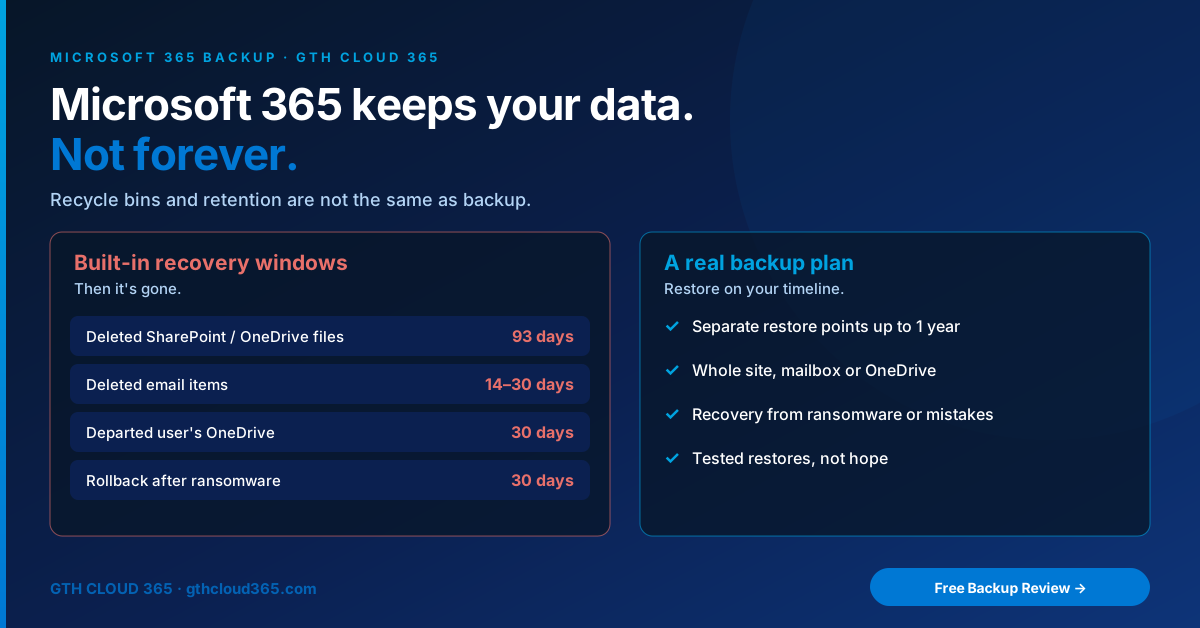
Microsoft 365 has useful built-in recovery features, but each one has a time limit:
| What happened | Built-in recovery | How long |
|---|---|---|
| File deleted from SharePoint or OneDrive | Recycle bin (first and second stage) | 93 days |
| Email deleted and emptied from Deleted Items | Recoverable Items folder | 14 days by default (up to 30) |
| User leaves and account is deleted | OneDrive retention for deleted users | 30 days by default (configurable) |
| Files encrypted by ransomware | OneDrive “Restore your OneDrive” / SharePoint library restore | Up to 30 days back |
| User account deleted by mistake | Microsoft Entra deleted users | 30 days |
After those windows close, the data is permanently removed. That’s why a real Microsoft 365 backup plan matters.
Retention Is Not the Same as Microsoft 365 Backup
Microsoft Purview retention policies can keep content for years, even after users delete it. They’re valuable for compliance, legal holds and audits. But retention isn’t designed for fast recovery:
- Restoring means searching and exporting content, not clicking “restore”
- You can’t easily roll back a whole site or mailbox to last Tuesday
- Retention protects against deletion, not against files that were encrypted or overwritten in bulk
Think of retention as your records archive and Microsoft 365 backup as your undo button. Most businesses need both.
Why SMBs Need Microsoft 365 Backup Now
- Ransomware targets cloud files too. Synced OneDrive folders can be encrypted from an infected laptop.
- Accidental bulk deletes happen. One wrong sync or a cleanup script can remove thousands of files at once.
- Departing employees. Their OneDrive and mailbox are often the only copy of important work.
- Cyber insurance questions. Insurers increasingly ask whether you have backups that are separate from production data and whether you’ve tested a restore.
- Copilot and governance cleanups. When you prepare SharePoint for Copilot and archive old content, you want a safety net in case something important gets removed.
Your Microsoft 365 Backup Options
Option 1: Microsoft 365 Backup (from Microsoft)
Microsoft’s own backup service protects SharePoint sites, OneDrive accounts and Exchange mailboxes, with restore points going back up to a year. It’s set up in the Microsoft 365 admin center and billed on a pay-as-you-go basis. Microsoft’s published list price is $0.15 per GB per month of protected content, and restores aren’t charged. It’s a strong fit for businesses that want to stay inside the Microsoft ecosystem.
Option 2: Third-party Microsoft 365 backup tools
Many established vendors offer Microsoft 365 backup with flat per-user pricing, Teams chat coverage, longer retention and storage outside Microsoft’s cloud. These can be better value for businesses with lots of data per user, or with requirements for an independent copy.
Which one? For most SMBs we compare three things: total data size, how far back you need to restore, and whether you need a copy stored outside Microsoft. The right Microsoft 365 backup choice depends on those answers, not the brand.
The 5-Step Microsoft 365 Backup Plan
Step 1: Know your recovery windows
Document what Microsoft 365 already keeps (the table above) and decide where those windows aren’t long enough for your business.
Step 2: Fix the departed-user gap
In the SharePoint admin center → Settings → OneDrive retention, increase how long deleted users’ OneDrive files are kept (for example, to 365 days). Add an offboarding step: before deleting an account, move important files to a shared site and convert the mailbox to a shared mailbox if needed.
Step 3: Add retention for compliance
Create Microsoft Purview retention policies for the content you’re required to keep, such as financial records, contracts and HR files. Match the retention period to your legal or industry requirements.
Step 4: Choose and turn on a Microsoft 365 backup solution
Protect, at minimum:
- All mailboxes, including shared mailboxes
- All OneDrive accounts
- SharePoint sites with business-critical content, including the sites behind Teams
Step 5: Test a restore every quarter
A backup you’ve never restored is a hope, not a plan. Every quarter, restore one file, one mailbox folder and one site to confirm it works and to see how long it takes. Write down the result, because insurers and auditors may ask.
Common Microsoft 365 Backup Mistakes
- Assuming the recycle bin is enough. 93 days goes quickly, especially when nobody notices a deletion.
- Deleting departing users too fast. Their OneDrive data goes with them.
- Backing up only email. SharePoint and OneDrive usually hold your most valuable files.
- Forgetting Teams. Team files live in SharePoint, so those sites need protection too.
- Never testing restores. You find out a backup doesn’t work at the worst possible time.
Microsoft 365 backup works best alongside good governance. Our Microsoft 365 governance framework covers retention, sharing and admin roles, and our Microsoft 365 guest access governance plan helps you control who can reach your data in the first place.
For Microsoft’s details, see Microsoft 365 Backup pricing on Microsoft Learn.
How GTH Cloud 365 Helps
We help SMBs build a Microsoft 365 backup and recovery plan that actually works:
- Review of your current recovery windows and gaps
- OneDrive retention and offboarding process for departing users
- Purview retention policies matched to your compliance needs
- Microsoft 365 Backup or third-party option chosen and configured for your data size and budget
- Quarterly restore testing with written results for insurers and auditors
Know exactly what you can recover, and for how long.
👉 Get your free Microsoft 365 Governance Health Check. We’ll show you where your recovery gaps are in 30 minutes.