
Microsoft 365 Copilot readiness is the single most important thing to assess before enabling AI in your organization — and most SMBs skip it entirely.
Microsoft Copilot is one of the most powerful productivity tools ever added to Microsoft 365. It drafts emails, summarizes meetings, generates reports, and answers questions using the data inside your organization. For a growing business it sounds like an immediate win.
But here is what most Microsoft partners and IT vendors will not tell you before they sell you Copilot licenses.
Copilot does not create new access to your data. It surfaces existing access — faster, at scale, and in response to natural language questions from every user in your organization.
That means if your Microsoft 365 environment has permission sprawl, overshared documents, ungoverned SharePoint sites, or sensitive data sitting without labels — Copilot will find all of it. And it will surface it to whoever asks.
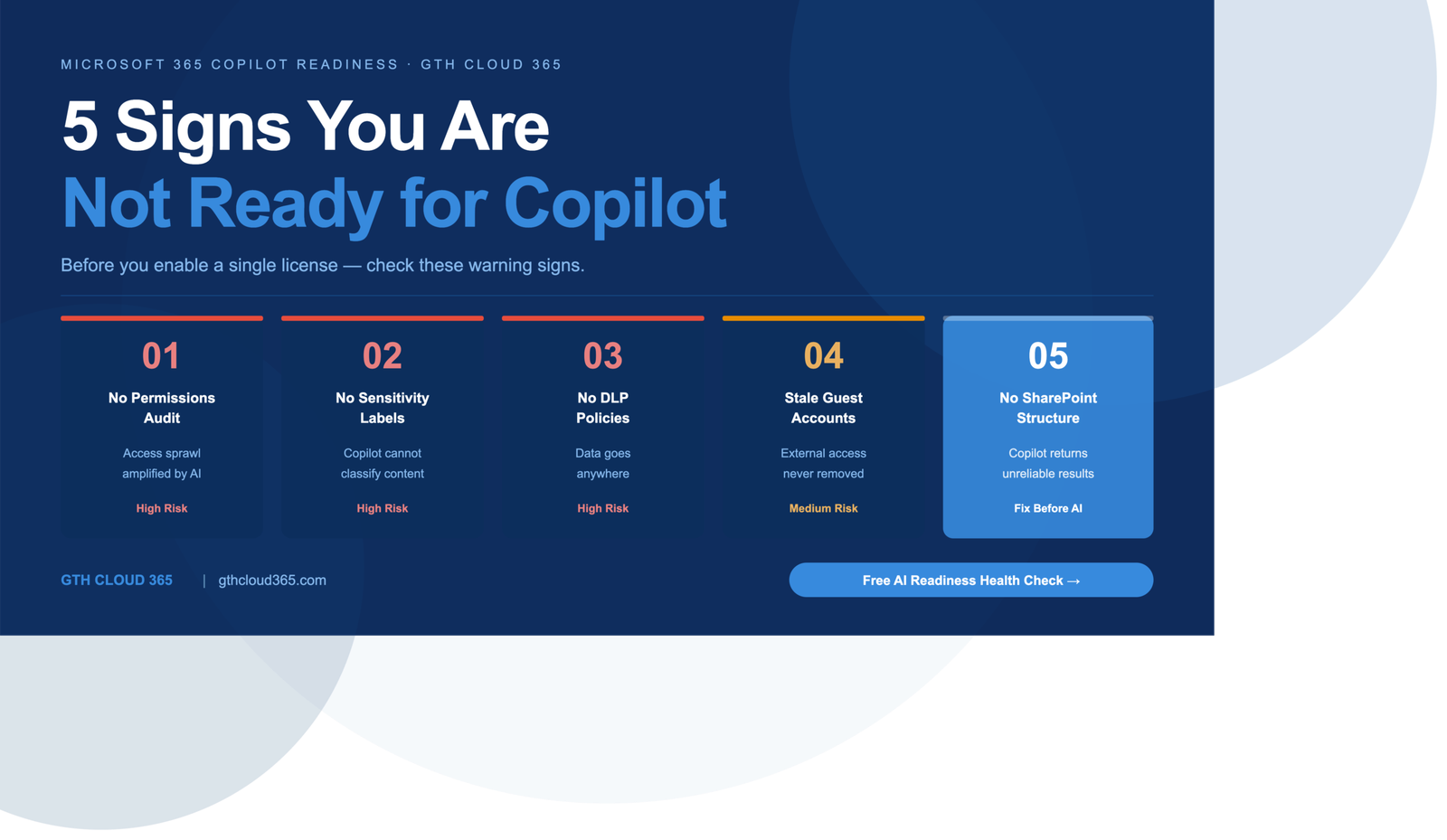
This post covers the five warning signs that your Microsoft 365 environment is not ready for Copilot — and what to do about each one before a single license goes live.
Sign 1 — You Have Never Audited Who Has Access to What
Microsoft 365 Copilot readiness starts with one fundamental question: who can reach what inside your environment right now?
Most SMBs cannot answer this question accurately. Over months and years of growth, Microsoft 365 environments accumulate:
- SharePoint sites shared with entire departments when only two people needed access
- OneDrive files shared with “anyone with the link” and forgotten
- Teams channels with external guests from projects that ended years ago
- Document libraries with broken permission inheritance where access has been added ad hoc for years
- Sensitive files sitting in locations accessible to everyone in the organization
Under normal circumstances this permission sprawl is a risk that stays mostly hidden. People stumble across things they should not see occasionally but it does not cause a crisis.
Copilot changes this completely. When a user asks Copilot “what do we know about our contract with Company X” — Copilot searches everything that user can access and returns an answer. If that user has inherited access to a confidential legal document from three years ago that was never properly secured — Copilot finds it and includes it in the response.
What to do: Run a full permissions audit across SharePoint Online, Teams, and OneDrive before enabling any Copilot license. Identify overshared content, stale external access, and broken permission inheritance. Fix the highest-risk items first.
Sign 2 — You Have No Sensitivity Labels Applied
Microsoft Purview sensitivity labels are how Microsoft 365 classifies documents and emails by their level of confidentiality — Public, Internal, Confidential, Highly Confidential.
Without sensitivity labels in place Copilot cannot distinguish between a public blog post draft and a confidential HR performance review. Both are just documents to Copilot. Both will be surfaced in responses if the user asking has access to them.
Sensitivity labels do three things that matter for Microsoft 365 Copilot readiness:
First they classify content so Copilot and Microsoft Purview can apply appropriate handling rules based on sensitivity level.
Second they enable Data Loss Prevention policies to fire based on content classification — so a confidential document cannot be shared externally even if someone asks Copilot to help draft an email that includes it.
Third they create an audit trail of how sensitive content was handled — which matters enormously if you ever face a compliance audit or data breach investigation.
What to do: Define a sensitivity label framework appropriate for your organization. At minimum: Public, Internal, Confidential, and Highly Confidential. Apply labels to your highest-risk document libraries first — HR, finance, legal, and executive communications. Then build out automated labeling policies to classify new content as it is created.
Sign 3 — You Have No DLP Policies in Place
Data Loss Prevention policies in Microsoft 365 define rules for how sensitive information can be shared, moved, and used across your environment.
Without DLP policies Copilot can help a user draft an email that includes confidential financial data and send it to an external recipient with no warning, no block, and no audit record.
Common DLP scenarios that become Copilot risks without policies in place:
- A user asks Copilot to summarize a confidential client contract and include it in an email to a new external contact
- A user asks Copilot to find all documents containing personal employee information and compile them into a report
- A user asks Copilot to draft a response to a customer complaint that includes internal pricing information not meant for external sharing
DLP policies intercept these scenarios. They can warn the user, require justification, or block the action entirely depending on the sensitivity level and the destination.
What to do: Implement DLP policies in Microsoft Purview before enabling Copilot. Start with policies that protect financial data, personal information, and client-related content. Configure policies to warn users first rather than block everything — this builds awareness without creating friction that causes workarounds.
Sign 4 — You Have Stale Guest Accounts and External Access
Guest accounts in Microsoft 365 are one of the most overlooked Microsoft 365 Copilot readiness issues we find during assessments.
Every vendor, contractor, consultant, and project partner who was ever given guest access to your Microsoft 365 environment may still have that access — even if the project ended two years ago, the vendor relationship terminated, or the individual left the organization they represented.
Stale guest accounts are a standing security risk in any Microsoft 365 environment. When Copilot is enabled they become an active data exposure risk.
Here is the scenario: a former contractor still has guest access to a Teams channel from a project that ended 18 months ago. That Teams channel contains conversation history, documents, and decisions from across your organization that accumulated over the project period. That contractor can now use their own Copilot license to query your content through that guest access.
What to do: Run a guest account audit immediately. Identify every external user with active access to your Microsoft 365 environment. Remove access for anyone whose project or relationship has ended. Implement an Access Review schedule in Microsoft Entra ID so guest access is reviewed and recertified on a quarterly basis going forward.
Sign 5 — Your SharePoint Has No Information Architecture
SharePoint is Copilot’s primary data source. When a user asks Copilot a question that requires searching organizational knowledge — meeting notes, policies, project documents, client records — Copilot looks in SharePoint first.
If your SharePoint environment is unstructured — hundreds of sites with no logical organization, documents dumped in generic libraries, no metadata, no consistent naming conventions, content scattered without any taxonomy — Copilot responses will reflect that chaos.
Copilot will return results that are incomplete, inconsistent, or pulled from outdated documents because it cannot distinguish between a current policy document and a superseded draft from three years ago sitting in the same library.
Beyond the quality of Copilot responses, poor information architecture means permission problems are compounded. When content has no structure it is impossible to apply consistent access controls — which brings you back to Sign 1.
What to do: Before enabling Copilot conduct an information architecture review of your SharePoint environment. Define a logical site structure aligned to your business. Implement consistent metadata and document libraries. Archive or delete outdated content. Apply retention labels so content has a defined lifecycle. This work improves Copilot response quality dramatically and reduces data exposure risk at the same time.
What Good Microsoft 365 Copilot Readiness Looks Like
An environment that is genuinely ready for Copilot has these six foundations in place:
Permissions are clean — access is granted on a need-to-know basis, broken inheritance is fixed, and stale external access is removed.
Sensitivity labels are applied — content is classified by confidentiality level and Copilot can distinguish between public and protected information.
DLP policies are active — rules are in place to prevent sensitive content from being shared inappropriately through Copilot-assisted actions.
Guest access is governed — external accounts are reviewed regularly and access is removed when relationships end.
SharePoint has structure — information architecture is logical, metadata is consistent, and outdated content is archived or deleted.
A governance playbook exists — your team knows the rules for how Microsoft 365 is used, how new content is created and classified, and what to do when something looks wrong.
How Long Does Microsoft 365 Copilot Readiness Take?
A typical Microsoft 365 Copilot readiness engagement with GTH Cloud 365 runs four weeks.
Week 1 covers assessment and risk mapping — a full audit of permissions, guest access, sensitivity labels, DLP policies, and SharePoint structure. We deliver a prioritized risk report with quick wins and long-term recommendations.
Week 2 covers permissions cleanup and access controls — fixing broken inheritance, removing stale guest accounts, implementing role-based access controls, and applying tenant-level governance policies.
Week 3 covers data classification and DLP — implementing a sensitivity label framework, applying labels to high-risk content, configuring DLP policies in Microsoft Purview, and setting retention labels for key document categories.
Week 4 covers readiness validation and enablement — a final check against Microsoft’s Copilot governance requirements, confirmation that data access boundaries are correct, and activation of Copilot licenses with confidence.
Key Takeaways for SMBs Planning Copilot
- Copilot does not create new data access — it amplifies existing access, which means existing risks become immediate problems
- The five signs in this post are present in most SMB Microsoft 365 environments — you are not alone if several apply to your organization
- Microsoft 365 Copilot readiness is not a one-time project — it is the foundation of responsible AI adoption that protects your business as you scale
- A readiness assessment before enabling Copilot takes four weeks — discovering a data breach after enabling it can take months to recover from
- The best time to assess Microsoft 365 Copilot readiness is before you need it — not after something goes wrong
Is Your Microsoft 365 Environment Ready for Copilot?
Most SMBs are not — and they find out only after something goes wrong.
GTH Cloud 365 offers a free Microsoft 365 Governance and AI Readiness Health Check for SMB and mid-market organizations. In one session we identify your top governance risks, quick wins, and a clear path to safe Copilot adoption.
No obligation. No sales pressure. Just specific, actionable guidance for your Microsoft 365 environment.
Request Your Free AI Readiness Health Check →